
This guide shows how to set up the MRU to log output data to its internal storage, and how to download the log files afterwards with the NORSUB Configurator.
Internal storage or computer?
-
Internal storage: the MRU writes the data to its own memory. The Configurator does not need to stay connected, logging continues after the Configurator is closed, and it starts again after a power cycle. Use this for long-term and unattended logging.
-
Computer: the Configurator writes the data to a file on the connected PC. The Configurator must stay open and connected for the whole session. Use this only for short tests.
What is logged
The MRU logs exactly the output it is configured to send: the same output variables, protocol, number format and output rate as set up under Settings > Input & output. Each output message is written to the log file as it is sent. Nothing is added or removed.
This applies to all output protocols. With NSUB NMEA, each message is a line of text, and the number format setting (for example 3 decimals, 4 decimals or scientific) decides how each value is written. With a binary protocol, the log file contains the binary messages. Binary output is described on a separate page.
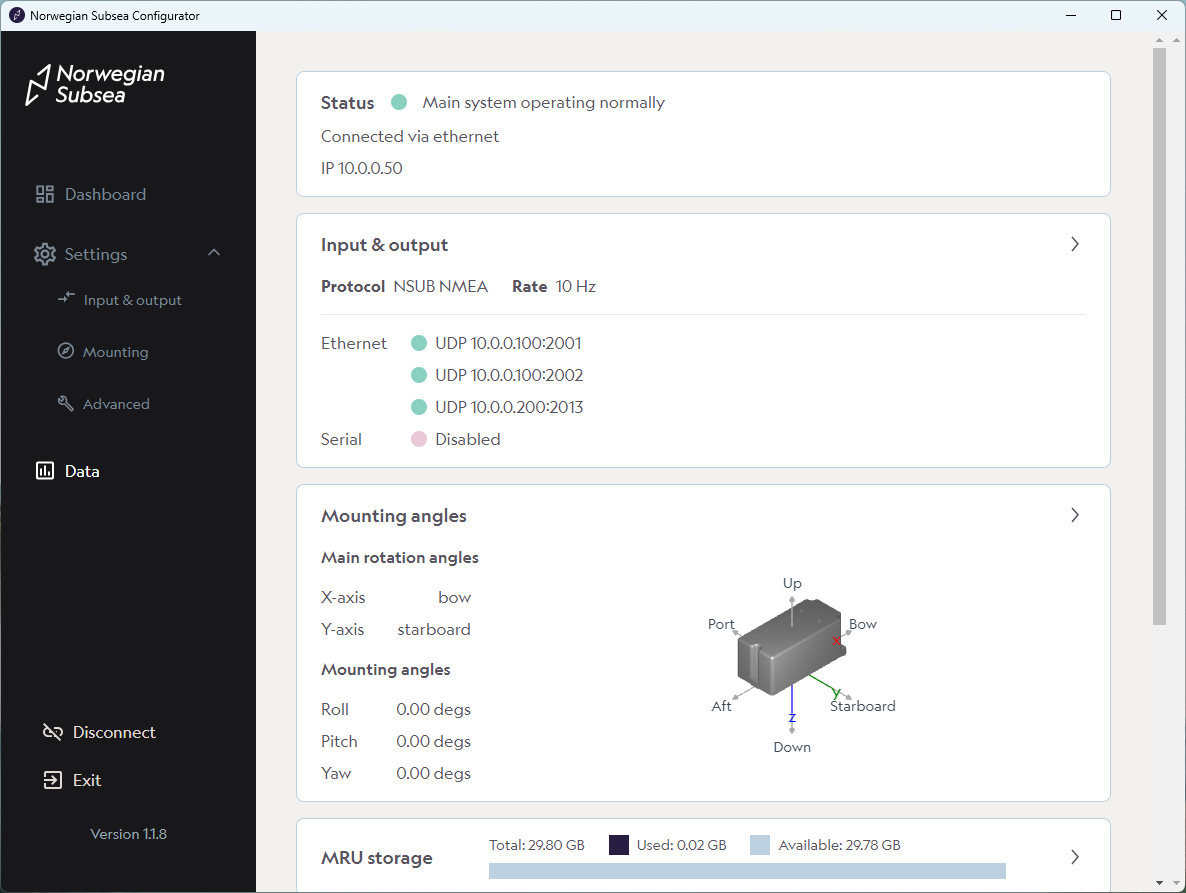
How much storage is used
The data rate is the size of each output message multiplied by the output rate, in bytes per second. Multiply by 86,400 (seconds per day) to get the storage used per day. The message size depends on the number of output variables and how they are formatted:
-
NSUB NMEA: each value is written as text, so the line length depends on the number format and on the size of each value. Example: 6 measurement variables plus timestamp and status with 3 decimals give about 85 bytes per line, including the message ID, header fields, commas and checksum.
-
NSUB binary: each value takes its binary size, plus 4 bytes per message for the start byte, length, token and checksum. Most output variables are singles (4 bytes), the timestamp is a double (8 bytes) and the status word is 4 bytes. Example: the same 6 measurement variables plus timestamp and status give 6 × 4 + 8 + 4 + 4 = 40 bytes per message.
The table compares the two examples, with the same 8 output variables, and about 29.8 GB of internal storage available. With these variables, binary uses about half the storage of NMEA:
|
Output rate |
NMEA, 3 decimals (85 bytes): per day |
NMEA: storage full after |
Binary (40 bytes): per day |
Binary: storage full after |
|---|---|---|---|---|
|
1 Hz |
7.3 MB |
about 11 years |
3.5 MB |
more than 20 years |
|
5 Hz |
37 MB |
about 2 years |
17 MB |
almost 5 years |
|
10 Hz |
73 MB |
about 13 months |
35 MB |
about 2.4 years |
|
50 Hz |
367 MB |
almost 3 months |
173 MB |
about 6 months |
As a check, a test log with 20 output variables at 3 decimals and 50 Hz had an average line length of 161 bytes, which is about 700 MB per day. More variables give longer lines and faster storage use. Downloaded files can be deleted from the MRU to free up storage (see Download the log files).
Step 1: Open the log settings
Go to Data and click Log settings. The Log to menu selects where the data is written.
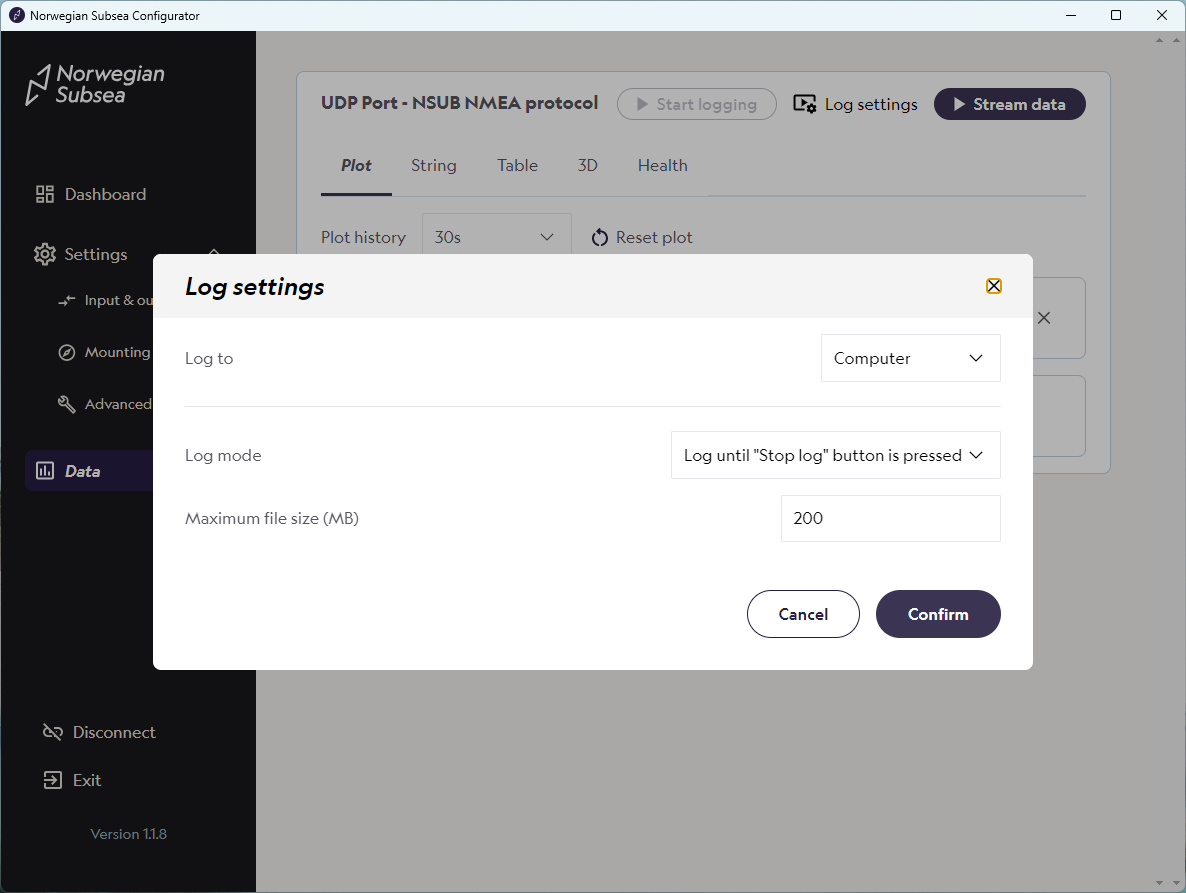
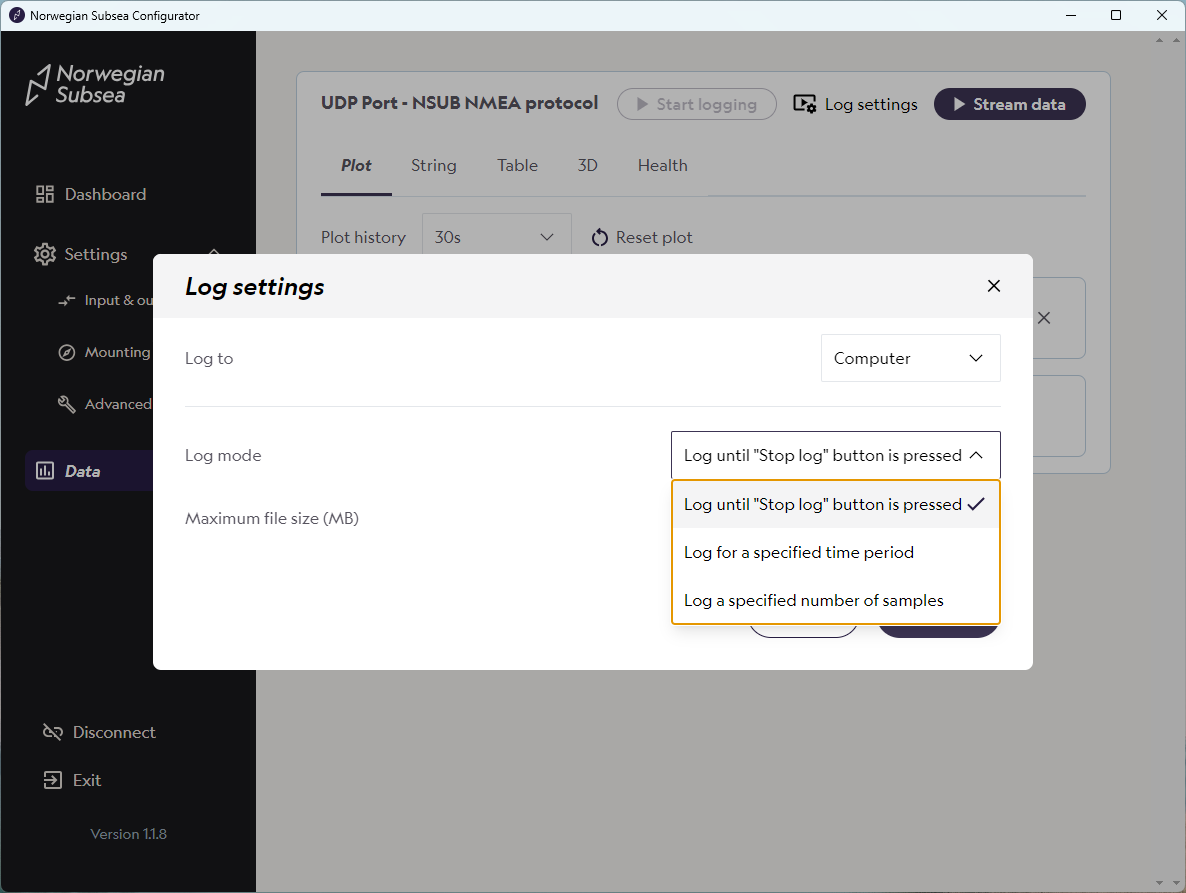
Step 2: Select Internal storage
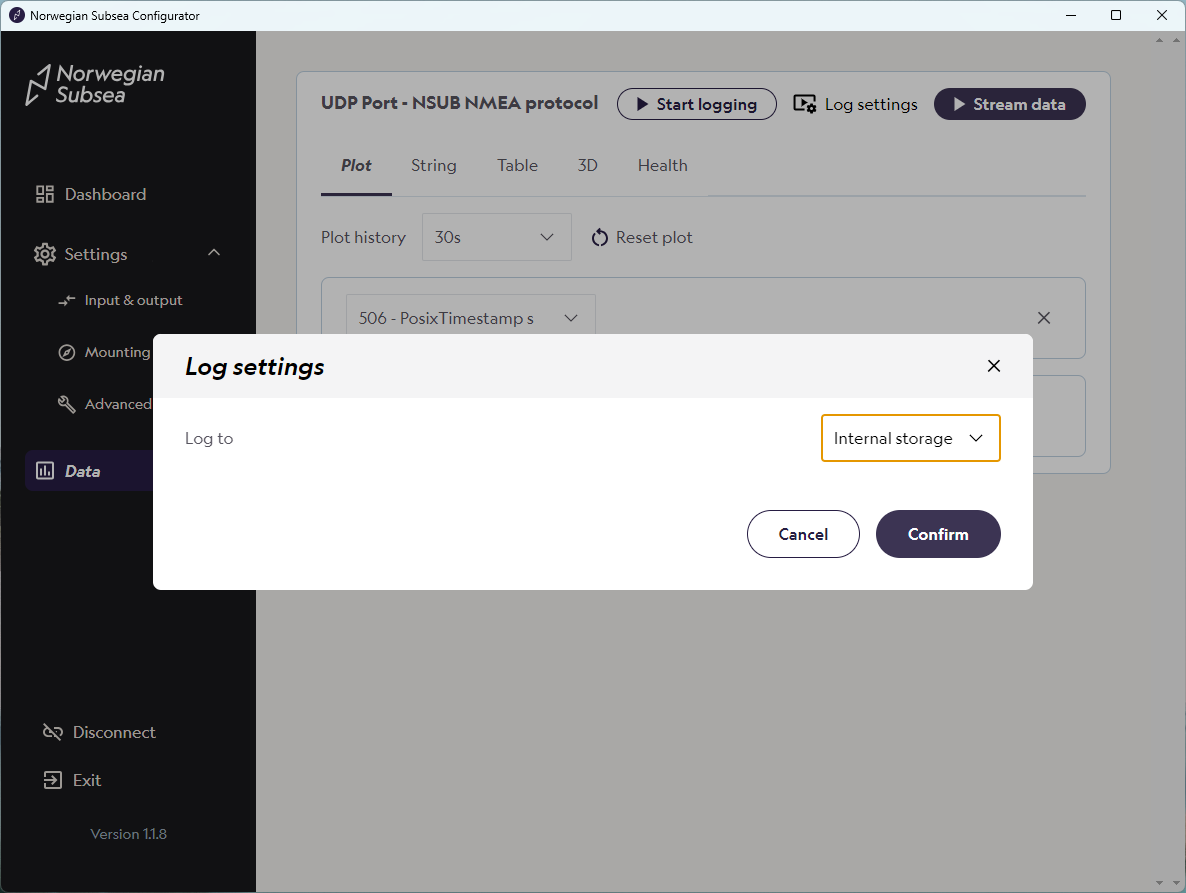
Set Log to to Internal storage and click Confirm. There are no further settings for internal storage.
Step 3: Check the live data (optional)
Click Stream data to check that the MRU outputs sensible values before you start logging. Streaming is only for monitoring; logging to internal storage works with streaming on or off.
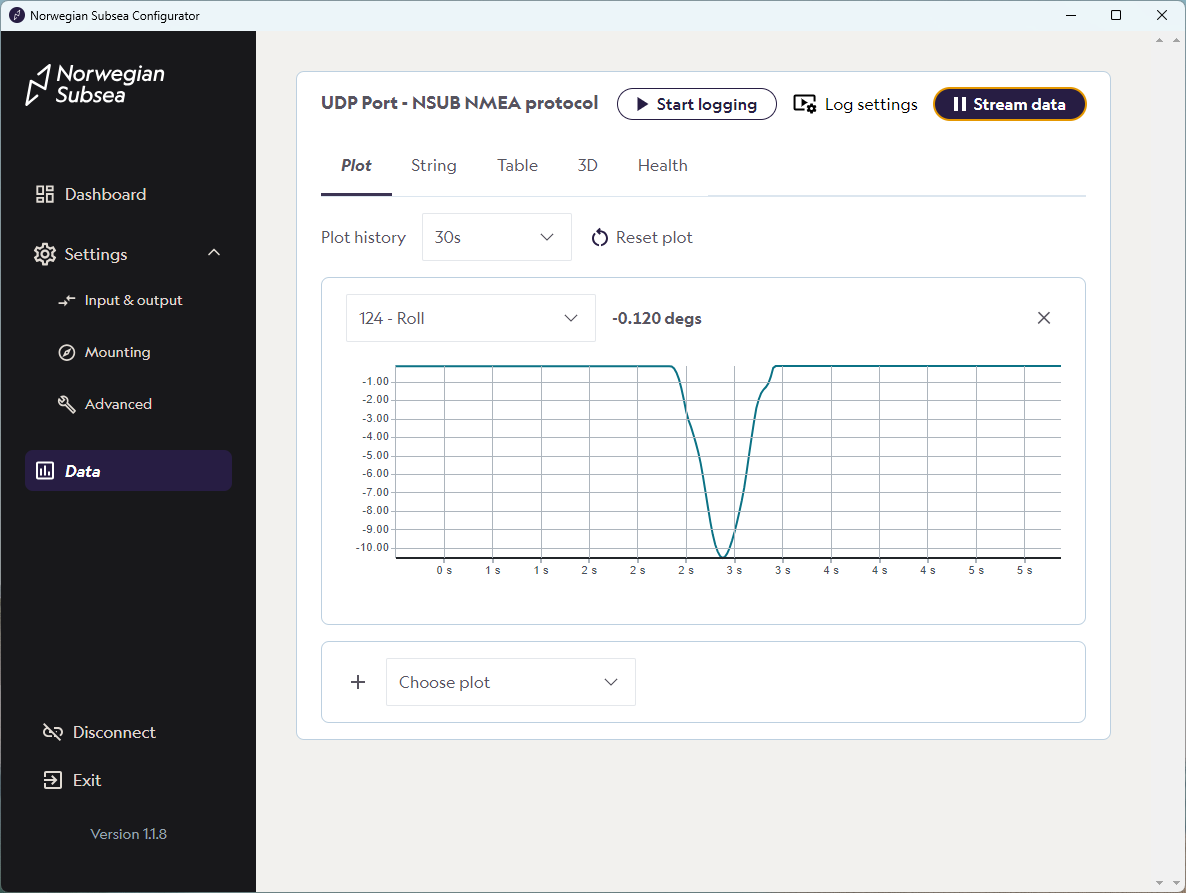
Step 4: Start logging
Click Start logging. The button changes to Stop logging, and Log settings is disabled while logging is in progress.
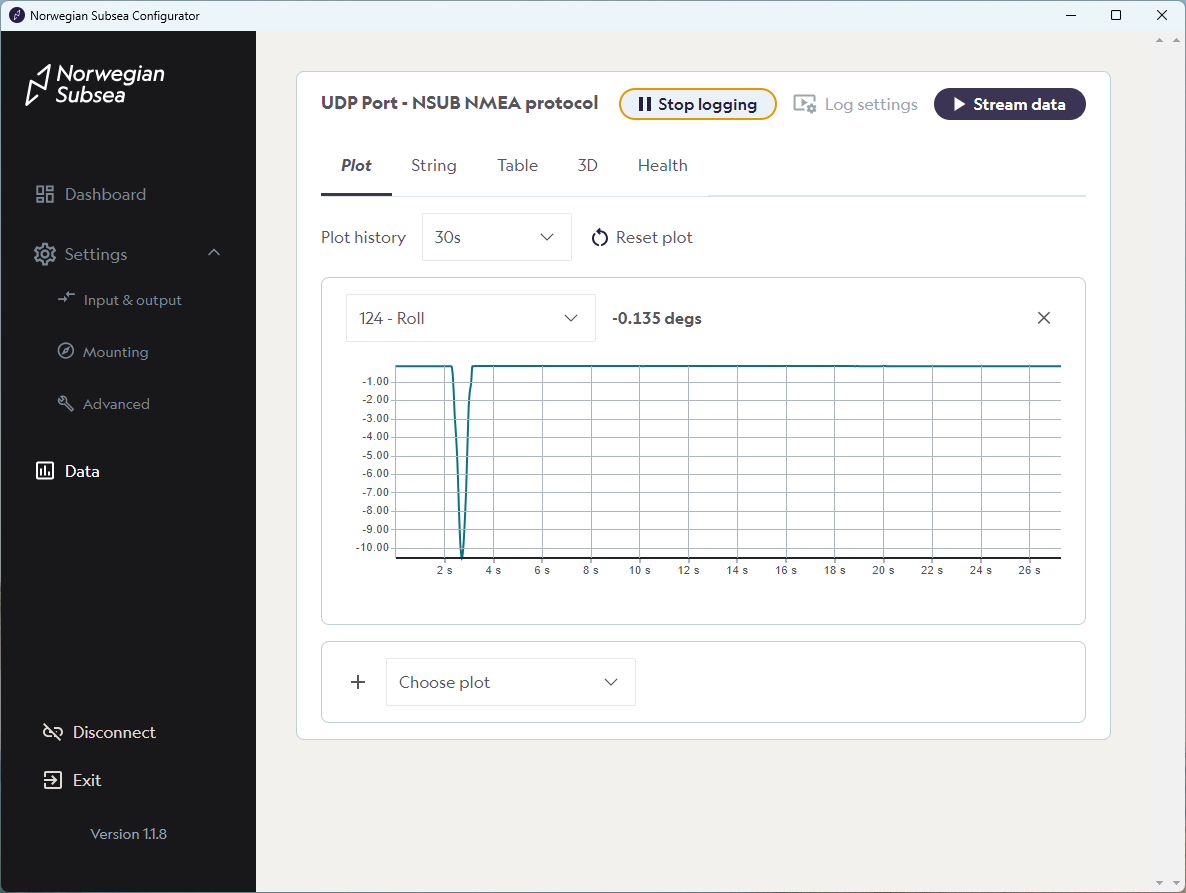
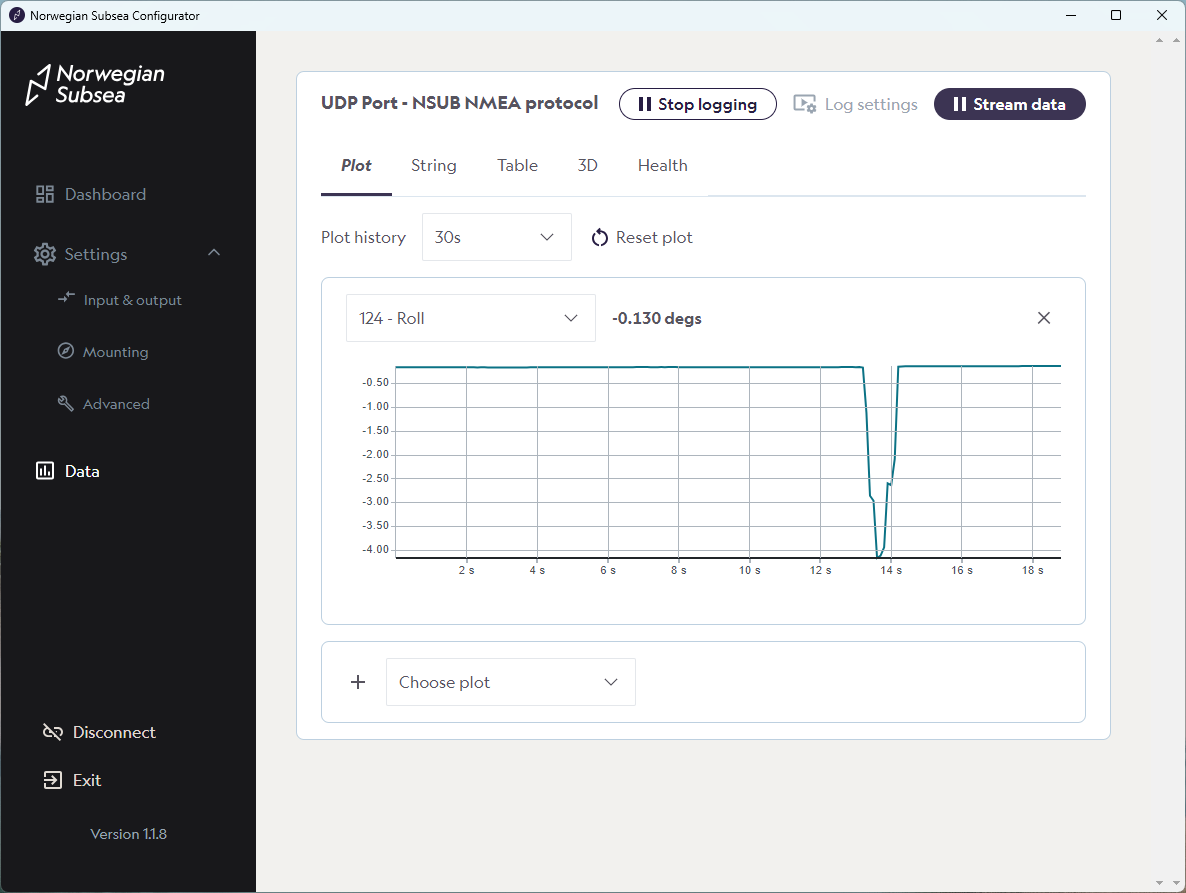
While the MRU is logging to internal storage, the Dashboard and Settings pages are locked. To change settings or download files, stop logging first.
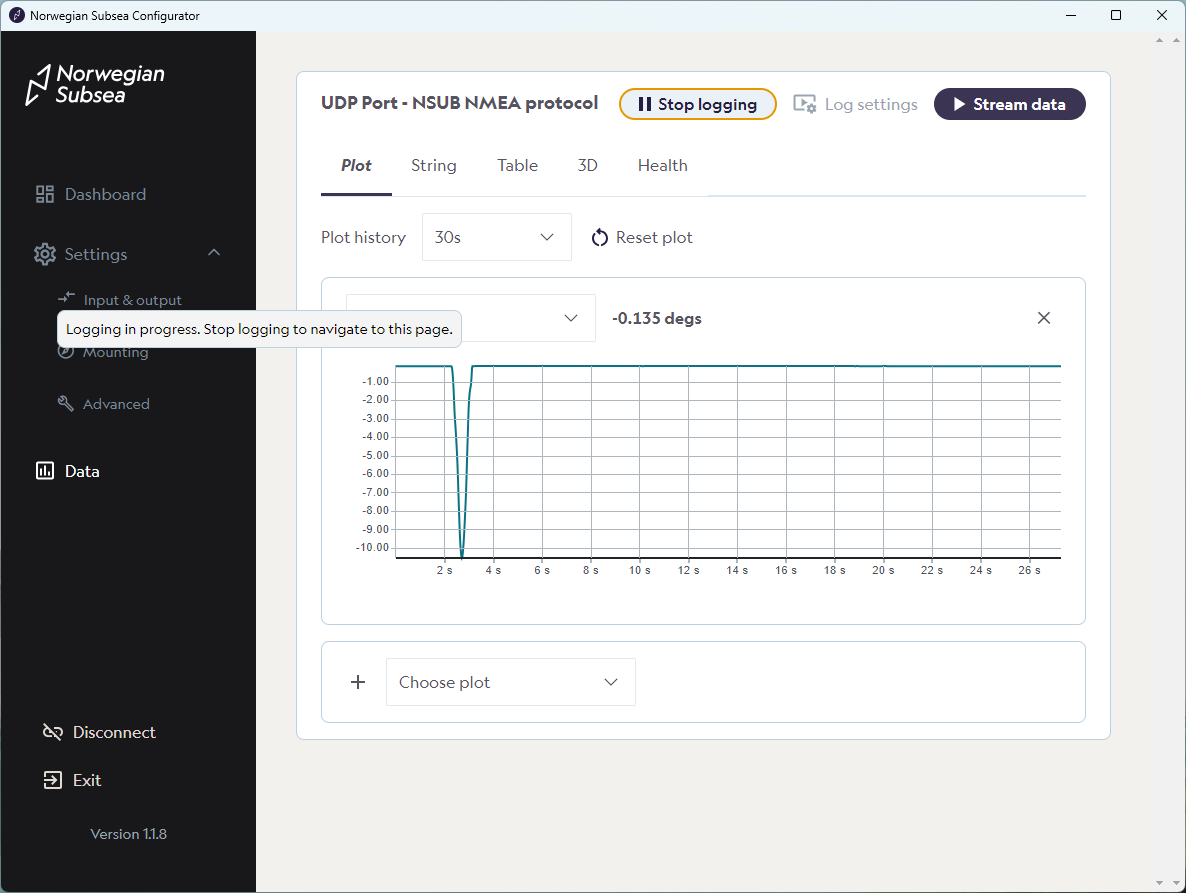
Step 5: Disconnect
You can now click Disconnect or Exit and close the Configurator. The MRU continues to log to internal storage, and it starts logging again by itself after a power cycle.
We recommend testing this once after installation: let the MRU log for a few minutes, power cycle it, wait a few more minutes, then reconnect and check that new data has been logged.
Reconnecting to an MRU that is logging
When you connect to an MRU that is logging to internal storage, Dashboard and Settings are greyed out. Go to Data and click Stop logging to access them again.
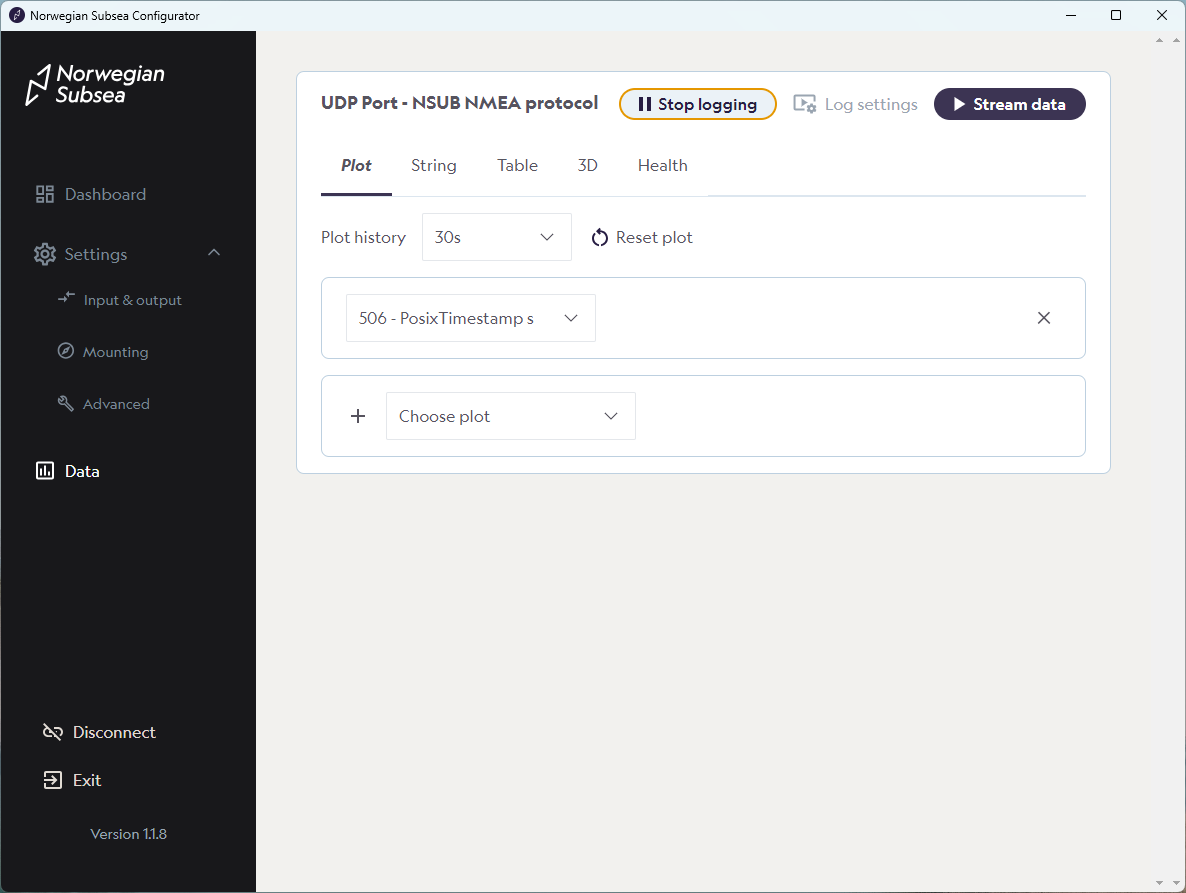
Remember to start logging again when you are finished, before you disconnect.
Download the log files
-
Stop logging (see above).
-
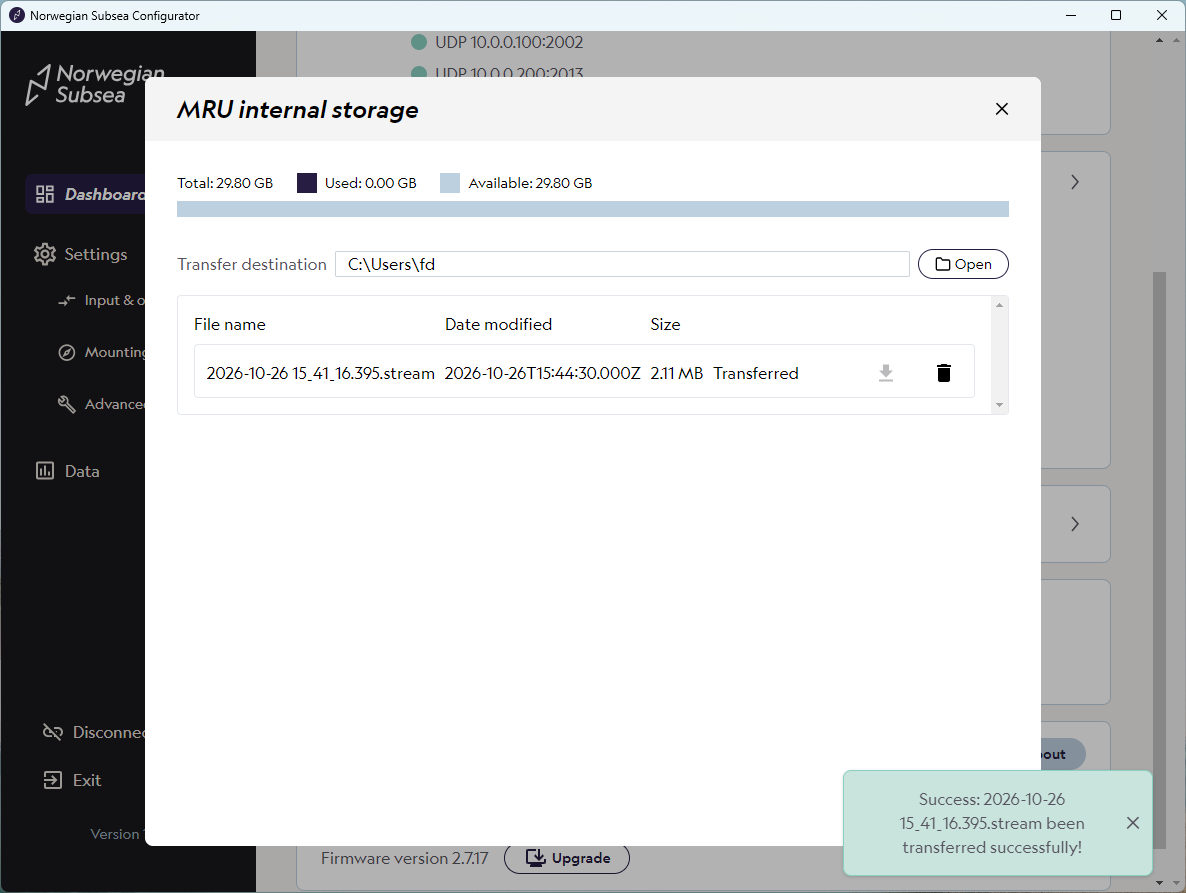
Go to Dashboard and click the MRU storage panel.
-
Check the Transfer destination. This is the folder on the PC where files are saved. Click Open to change it.
-
Click the download icon next to the file. The status changes from Not transferred to Transferred when the file is saved.
-
Delete files that are no longer needed with the bin icon, to free up storage.
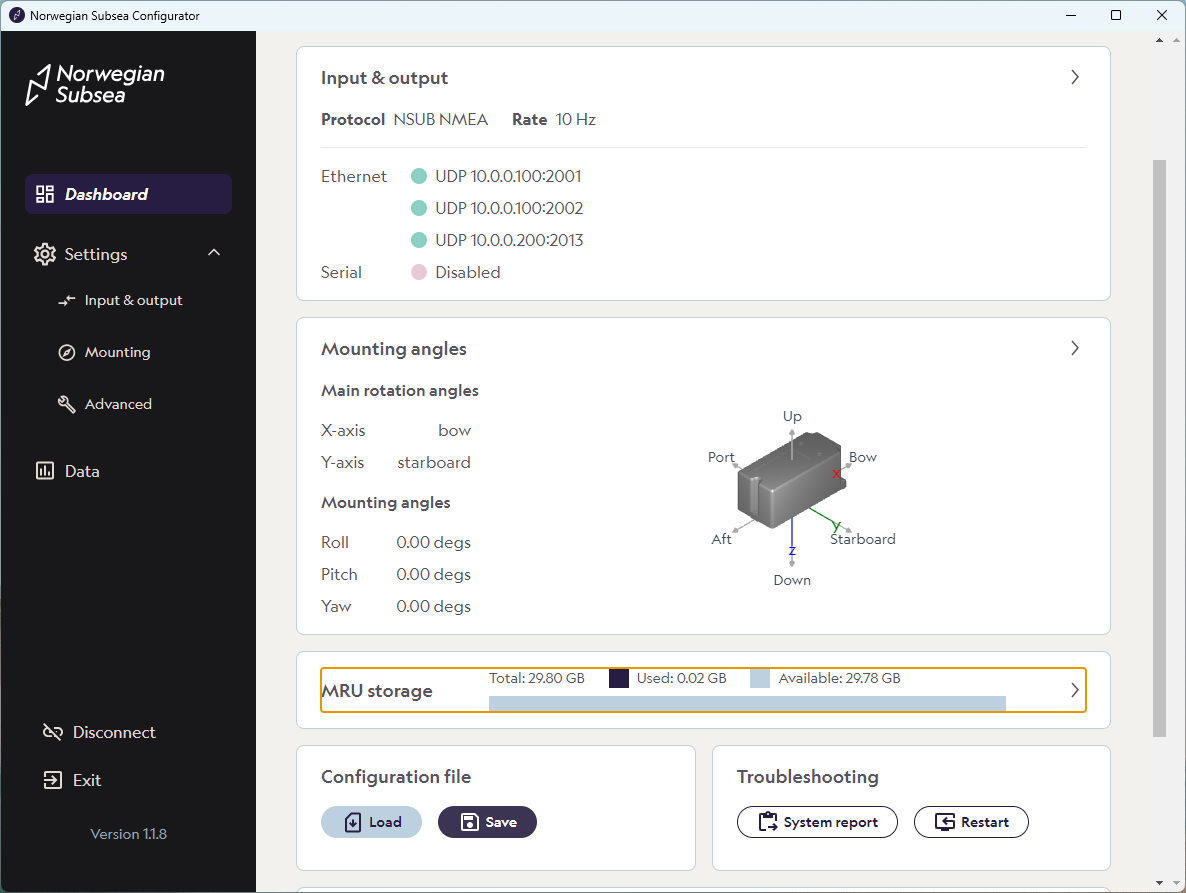
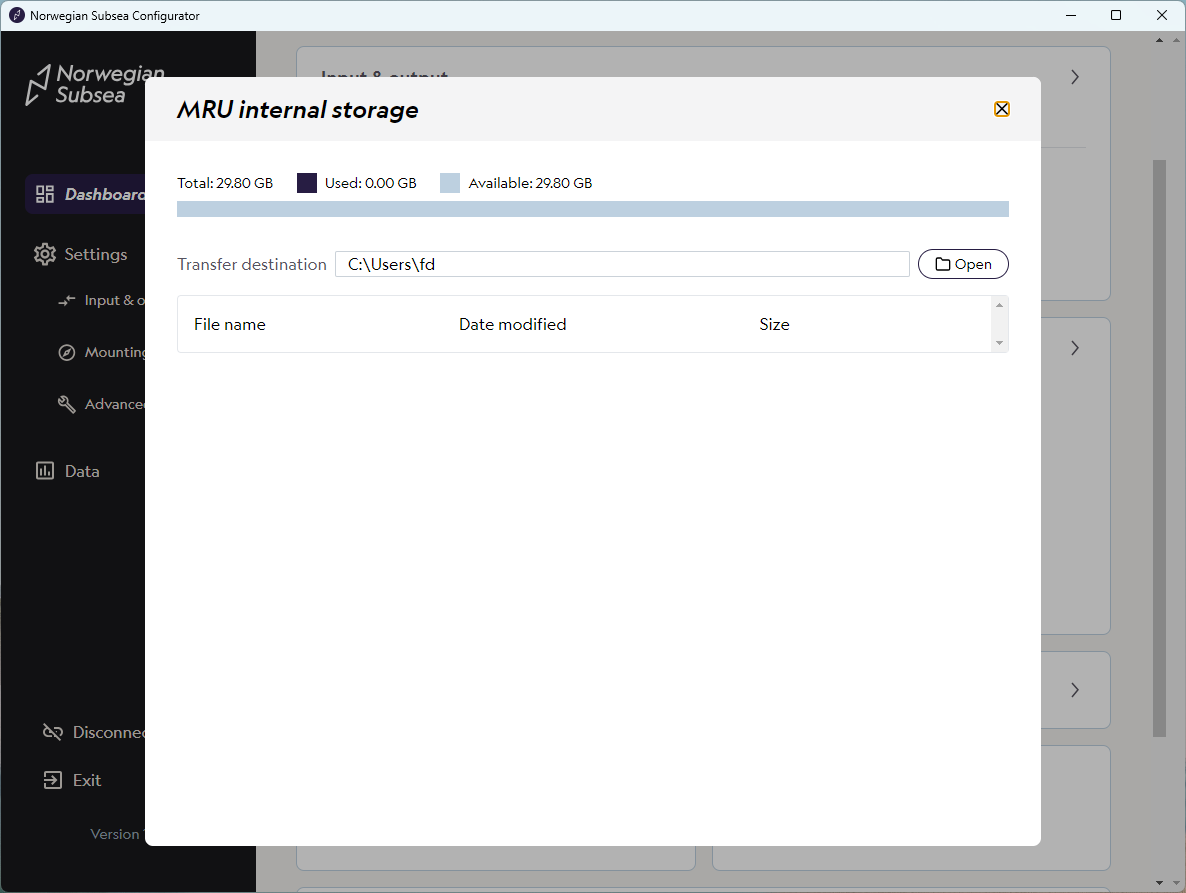
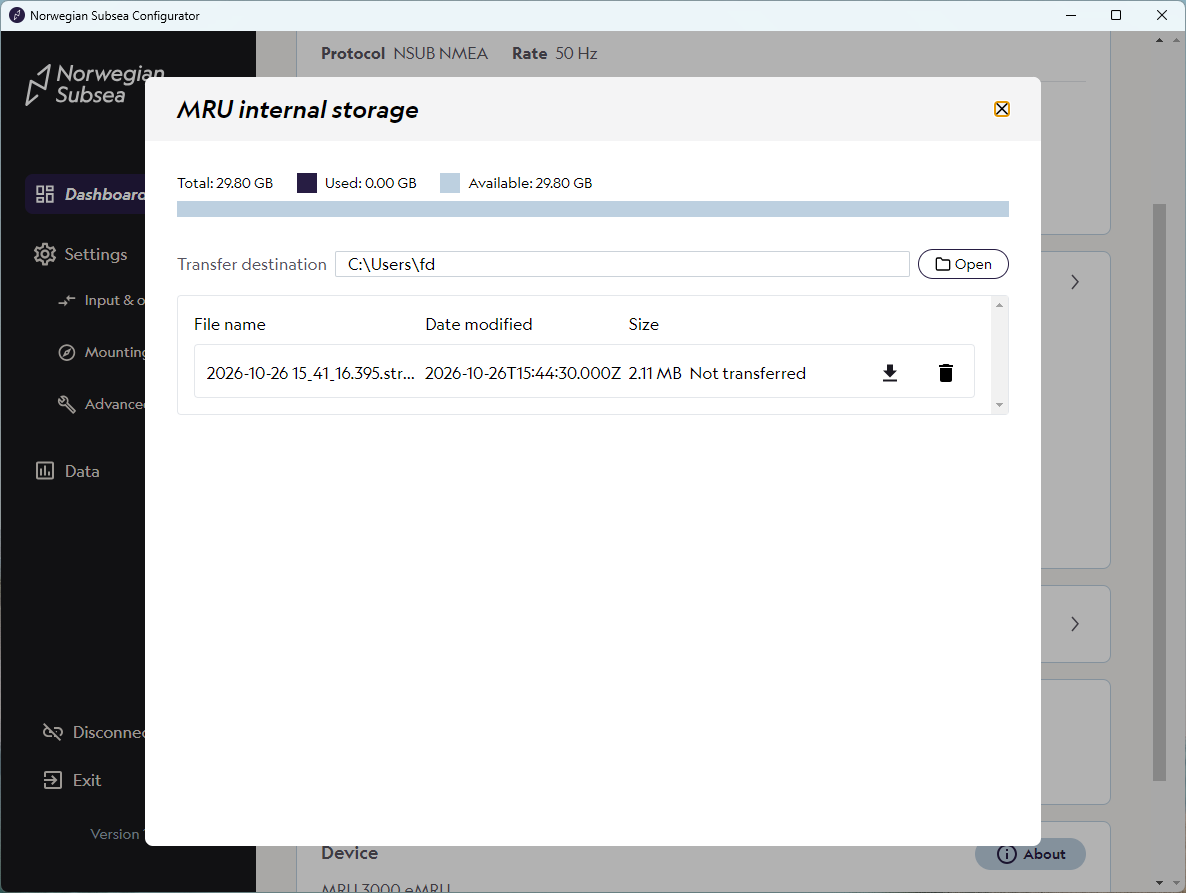
Log file format
Log files have the extension .stream. The file contains the raw output messages, written line by line exactly as the MRU sends them on its output (NSUB NMEA in this example). It is plain text and can be opened in any text editor or imported into analysis tools such as MATLAB, Python or Excel.
Example extract from a log file (NSUB NMEA, 20 output variables, 3 decimals, 50 Hz):
$PNSUB,10,024,1793037448.965,-0.130,-0.298,228.526,0.025,0.010,0.006,0.000,0.000,0.000,0.030,-0.068,0.040,0.009,-0.017,0.007,0.007,0.002,0.002,16777167*77
$PNSUB,10,024,1793037448.985,-0.129,-0.298,228.526,0.004,-0.010,-0.013,0.000,0.000,0.000,0.030,-0.067,0.039,0.009,-0.017,0.007,0.002,0.003,0.000,16777167*71
$PNSUB,10,024,1793037449.005,-0.129,-0.298,228.526,0.005,0.012,-0.026,0.000,0.000,-0.000,0.030,-0.067,0.039,0.009,-0.017,0.007,-0.003,-0.001,-0.001,16777167*5B
$PNSUB,10,024,1793037449.025,-0.129,-0.298,228.525,-0.012,-0.007,-0.022,0.000,0.000,-0.000,0.030,-0.067,0.040,0.009,-0.017,0.007,-0.003,-0.008,-0.001,16777167*5B
$PNSUB,10,024,1793037449.045,-0.129,-0.298,228.525,-0.010,0.003,-0.026,0.000,0.000,-0.000,0.030,-0.068,0.040,0.009,-0.017,0.007,0.001,-0.012,-0.001,16777167*59
$PNSUB,10,024,1793037449.065,-0.129,-0.298,228.525,-0.004,-0.044,-0.026,0.000,-0.000,-0.001,0.030,-0.068,0.040,0.009,-0.017,0.007,0.005,-0.013,-0.001,16777167*59
$PNSUB,10,024,1793037449.085,-0.129,-0.299,228.524,0.029,-0.012,-0.024,0.000,-0.000,-0.001,0.030,-0.066,0.040,0.009,-0.017,0.007,0.006,-0.009,-0.001,16777167*72
$PNSUB,10,024,1793037449.105,-0.129,-0.299,228.523,0.003,-0.006,-0.020,0.000,-0.000,-0.001,0.030,-0.067,0.040,0.009,-0.017,0.007,0.003,-0.003,0.001,16777167*56
$PNSUB,10,024,1793037449.125,-0.128,-0.299,228.523,0.012,-0.005,-0.009,0.000,-0.000,-0.001,0.030,-0.067,0.040,0.009,-0.017,0.007,-0.000,0.003,0.000,16777167*5F
$PNSUB,10,024,1793037449.145,-0.128,-0.299,228.523,-0.004,-0.006,0.000,0.000,-0.000,-0.001,0.030,-0.068,0.040,0.009,-0.017,0.007,-0.001,0.007,-0.000,16777167*73
$PNSUB,10,024,1793037449.165,-0.128,-0.299,228.523,0.010,-0.008,0.019,0.000,-0.000,-0.001,0.031,-0.068,0.040,0.009,-0.017,0.007,-0.001,0.009,0.000,16777167*7D
$PNSUB,10,024,1793037449.185,-0.128,-0.299,228.523,0.012,-0.004,0.040,0.000,-0.000,-0.000,0.030,-0.066,0.040,0.009,-0.017,0.007,-0.003,0.008,-0.000,16777167*51
Each line is one output message: the message ID and header fields, then one value per output variable in the same order as the variable list in Settings > Input & output, and finally the NMEA checksum.